
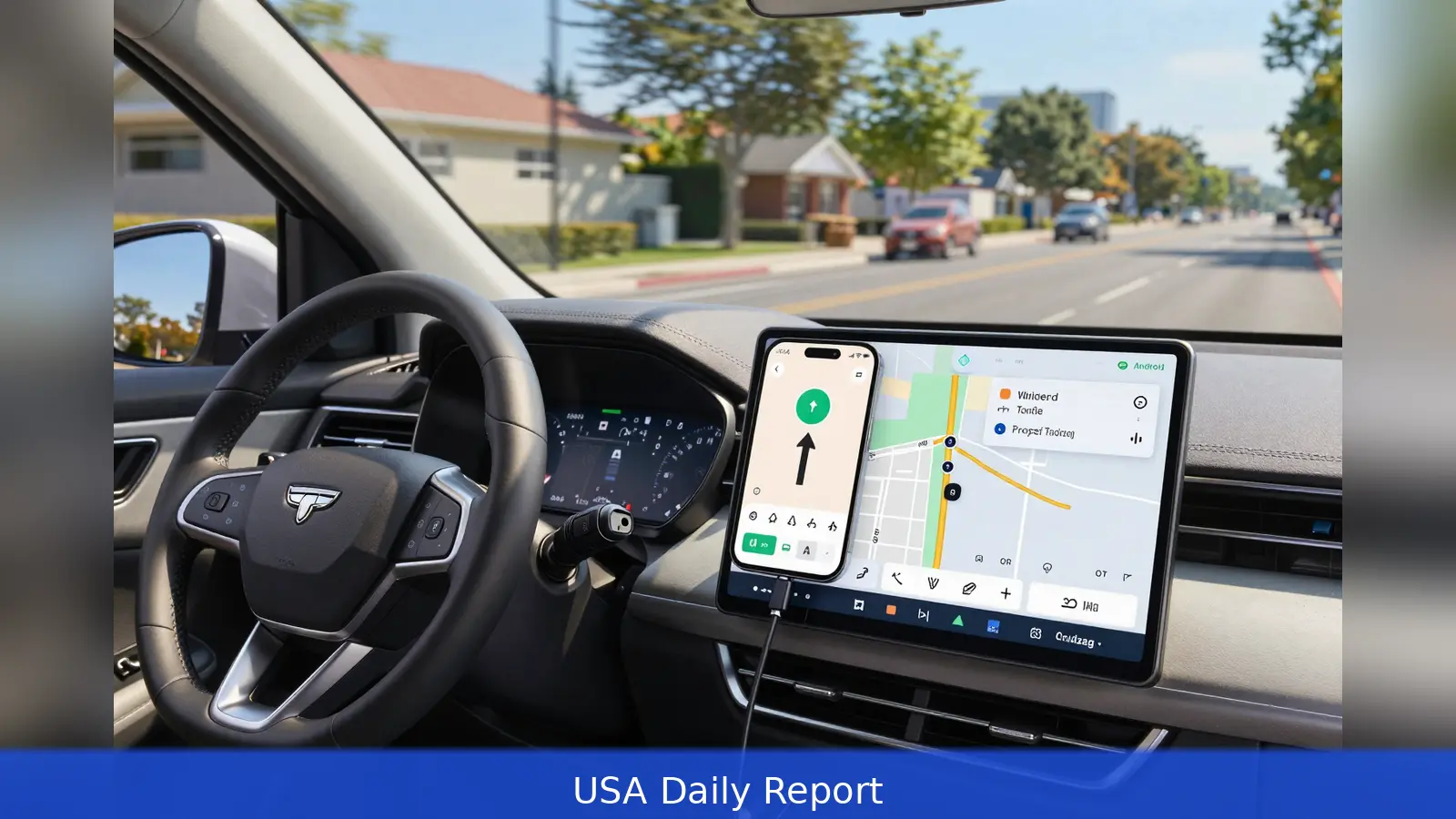
Cheap cables and aggressive battery savers are the phone problems that make Android Auto stall. ZDNet and Android Police trace most dropouts and lag to five simple phone-side mistakes: bad USB cables, battery optimizers, relying on wireless, an uncluttered launcher left uncustomized, and missing offline maps. The two guides converge on fixes that restore responsiveness, cut clutter and stop Android Auto from stalling mid-trip. None require a Google update; apply them on your phone and reliability should improve immediately.
The car's infotainment often ran smoothly, while the phone's settings and hardware choices sabotaged Android Auto. That contrast is the practical problem the published guides expose: the head unit is ready, but the phone is the weak link. ZDNet details how hardware and battery policies produce the most stubborn failures, and Android Police lays out launcher and assistant tweaks that cut the need to touch the screen while driving.
Fix the cable and prefer wired for heavy use
First, check the cable. ZDNet reports that cheap, charging-only or physically damaged cables are a leading cause of dropouts and lag. A short, data-capable USB cable from a reputable maker preserves the higher transfer rates Android Auto needs and reduces physical wear that produces intermittent disconnects. ZDNet specifically recommends brands such as Anker. The practical test is simple: if connections drop when the phone shifts or the cable bends, the cable is the likely culprit.
Second, choose wired over wireless for serious multi-app use. ZDNet found wired Android Auto to be noticeably faster and more responsive than wireless. Wireless convenience trades off responsiveness and phone battery life, because a wireless link keeps both Wi-Fi and Bluetooth active on the phone and accelerates battery drain. For short music runs wireless is usually fine, but for navigation plus media plus messaging on long drives, a wired connection delivers steadier performance and fewer interruptions.
Tame power management, maps, launcher, and assistant
Third, exempt Android Auto from aggressive power management. ZDNet instructs users to open Settings, go to Apps, select Android Auto, then Battery, and set Android Auto to Unrestricted. Battery optimizers and system-wide saver modes can throttle background activity and prevent Android Auto from functioning reliably. Leaving Android Auto unrestricted stops the OS from killing or stalling the app when the phone decides it needs to conserve power.

Fourth, download offline map regions. ZDNet warns that not downloading offline map areas can leave drivers without turn-by-turn guidance in low-coverage spots. If parts of your commute or a road trip run through thin coverage, save the relevant map tiles before you go.
That preserves navigation when cellular service drops and avoids mid-route surprises.
Fifth, prune the Android Auto launcher and set a preferred assistant to reduce distraction. Android Police recommends going to Settings, Connected devices, Connection preferences, Android Auto, and selecting Customize Launcher. Uncheck apps you never use and rearrange the rest so the in-car display shows only the controls you actually need. That cuts on-screen clutter and the temptation to search while driving.
Android Police also advises setting a preferred digital assistant and enabling data integrations so the assistant can handle context-rich requests across music, messaging, and navigation. Enabling the option that allows Android Auto to start while the phone is locked avoids the need to unlock and manually launch the system every time you get in the car. Those two assistant tweaks reduce manual interaction, which is the main source of distraction on the road.
All five fixes are implemented on the phone and in Android Auto settings; none require changes to the car's head unit or waiting for a rolling update from Google. The combination addresses the main causes of dropped connections, slow responses, missing features, and cluttered screens identified in the published guides.
Technically, these are small changes. Practically, they make a measurable difference. Swap a charging-only cable for a short data cable, switch to wired for heavy use, exempt Android Auto from battery restrictions, download offline maps for low-coverage areas, and flatten the launcher and assistant settings so the screen shows only what you need. Put together, the improvements reduce interruptions and lower the temptation to handle the phone while driving.
ZDNet and Android Police reach the same basic reading: the fragility of the Android Auto experience usually traces back to the phone, not the car. Fix the phone, and the system behaves the way it was designed to behave. For most drivers the setup work takes 10 minutes or less, and the benefits show up the next time the phone connects to the head unit.
Related Articles
- 3 iPhone settings I change immediately and why
- 25W MagSafe Travel Chargers: Faster, Bulkier, Pricier
- Amazon device deals: steep discounts on Echo, eero and Ring
One concrete change to start with: use a short, data-capable USB cable from a reputable maker such as Anker. That single swap, combined with the launcher and battery fixes, is the fastest route to fewer dropouts and a cleaner in-car interface. Based on reporting by ZDNet and Android Police.
This article was created with AI assistance.


