
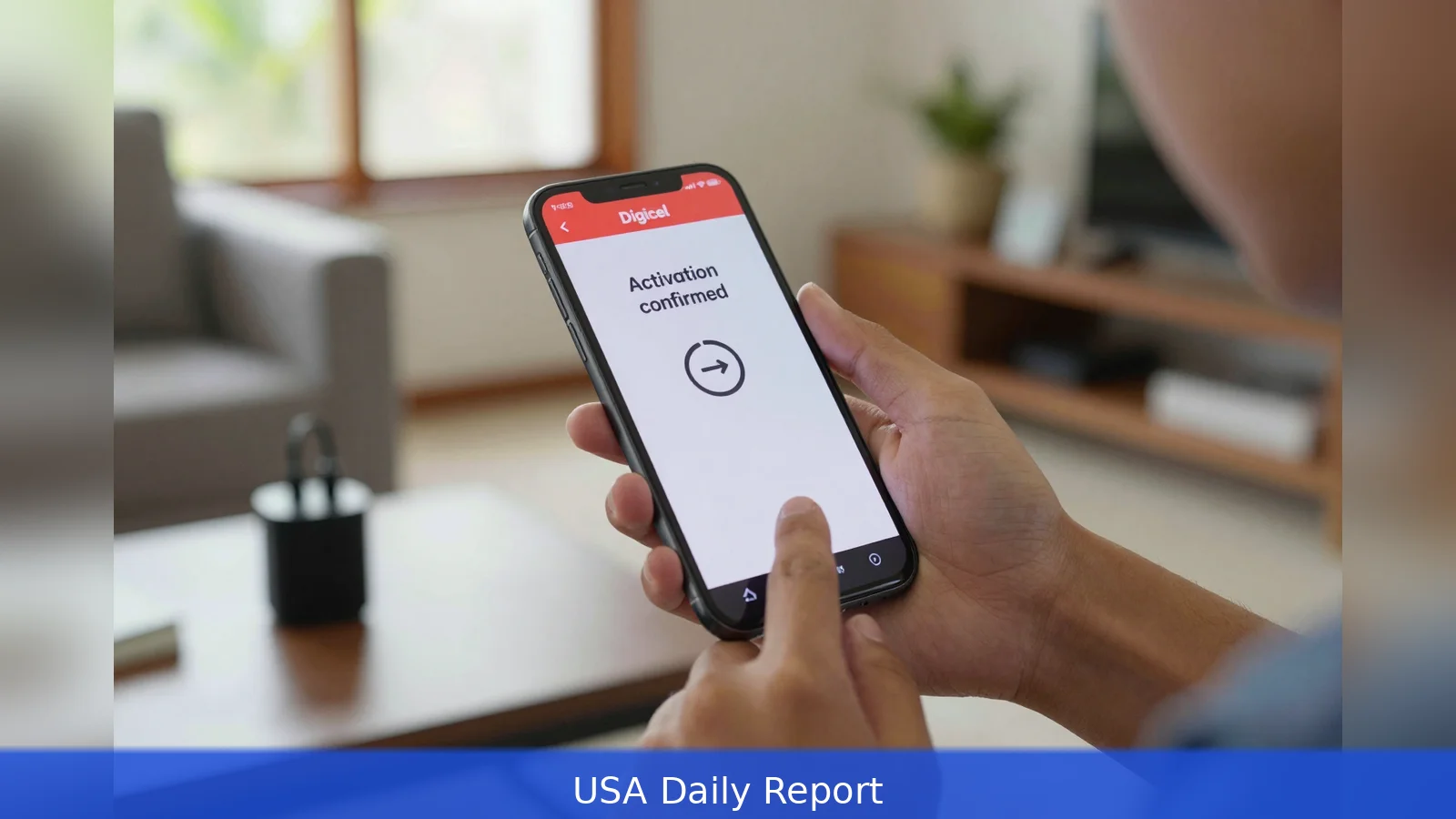
You will only get mobile data after Digicel confirms plan activation, because the operator sends an activation SMS and instructs you to restart your phone. The activation paths are consistent across Digicel territories: the MyDigicel app or website, a handset USSD menu, or an SMS short code where the region supports it. Each path ends the same way, with a confirmation text and a restart instruction, so keep mobile data switched off until that confirmation arrives. Below is a step by step, with the codes and caveats Digicel publishes for markets such as Fiji, Vanuatu, PNG and others.
If you switch mobile data on before Digicel confirms activation, the plan will usually not work because the operator requires a confirmation SMS and a device restart to complete the process.
1. Prepare your phone and account
SIM and number First, make sure the Digicel SIM is active in the handset and that the phone number you will use is the one registered to the SIM. Digicel sends the one-time login codes and activation confirmations to that number, so any mismatch blocks the flow.
Keep mobile data off Until you receive Digicel's confirmation text don't enable mobile data. The operator explicitly instructs customers to wait for that SMS and to restart their device after activation. That restart resolves the majority of post-activation connectivity problems documented across Digicel pages.
Credit and eligibility Make sure the prepaid account has enough credit to cover the plan cost. When an account lacks enough funds the Digicel support text flow returns a failure message telling the customer to top up and try again. Also note a documented eligibility caveat: some Digicel support pages state that postpay subscribers can't use certain SMS opt-in services and must contact Customer Care for alternatives.
2. The MyDigicel app or website, step by step
What it does The MyDigicel path provides a visual list of offers tailored to your number and markets.
Digicel's MyDigicel implementation appears across regional support pages for PNG, Tonga and Vanuatu with the same basic steps.
First, sign into MyDigicel on the mobile app or on Digicel's site. Enter your Digicel phone number and request the SMS code. The login uses a one-time 4-digit passcode that arrives by text to the number you entered. After you enter that code the account logs in automatically and the app shows an Available Plan or Bundle section with plans specific to your number.
Second, pick the plan. Tap the plan or bundle you want, tap Activate Plan or Activate Bundle, and confirm the on-screen purchase. The app then shows the purchase progressing and Digicel sends a confirmation SMS stating the plan is active.
Worked example: on a supported MyDigicel screen you might see an Available Plan list with "Daily Data 100MB" and "7-day Unlimited" entries. Tap the desired entry, accept the charge, then wait for the confirmation text. Keep mobile data off until that SMS arrives and follow the restart instruction in the message.
Finally, monitor usage. MyDigicel provides a Data Allowance view so you can check remaining data and expiry days. Remember that screenshots and currency figures can differ by market, so names and prices in the app will reflect your country settings.
3. Buying a plan from the phone with USSD
How USSD works Dial the local Digicel USSD code published for your country to open the plans menu. The USSD flow opens a menu where you choose a plan category, select a bundle, confirm the purchase and receive a pop-up followed by a confirmation SMS.
First, from the handset dial the Digicel USSD code listed for your market. The menu lists categories such as Data, Voice, and Bundles. Select Data, pick your plan, and confirm when prompted. The USSD process displays an on-screen message indicating activation is underway, then Digicel follows with an SMS confirmation.

Worked example: dial the local USSD dial string shown on your country support page, select the Data option, choose the Daily Data entry, confirm the charge and await the confirmation SMS. After Digicel confirms activation, restart the phone as instructed and then turn mobile data on.
The USSD path applies to a broad range of handset brands Digicel documents, including Samsung, Alcatel, Huawei and iPhone models listed on regional pages. The exact menu wording and codes vary by market, so check the Digicel page for your territory if the menu options look different.
4. SMS short codes and daily plan controls
Where SMS opt-in exists In some Digicel markets customers can subscribe by texting a keyword to a short code. Support pages give examples of a keyword-based SMS opt-in to subscribe to a daily bundle, and they also document the USSD alternative for daily bundles.
Automatic renewal is common for daily plans in the pages cited, with renewal every 24 hours unless the subscriber opts out. If renewal fails because of not enough funds Digicel sends a failure message instructing the user to top up and try again. Some support pages instruct users to send STOP to the applicable short code to unsubscribe from a daily plan. Short code availability and eligibility can vary by customer type and market.
Worked example: text the plan keyword to the short code listed for your market to buy the daily bundle. The plan will automatically renew 24 hours later unless you send STOP to that short code before renewal. If you re-subscribe before your current plan expires, some pages note that remaining balance will roll over and the new bundle will be added with its own expiry days.
5. Troubleshooting and special cases
Not enough credit If a purchase fails due to not enough credit the Digicel support flow returns an error message telling you to top up and try again. That failure notice appears on the USSD or SMS flow and as a text-based error if you attempt the purchase in MyDigicel.
No connectivity after activation If data doesn't work immediately after purchase keep mobile data off until you receive the confirmation SMS, then restart the phone. Digicel's guidance on its regional support pages for Vanuatu, PNG and other territories shows the restart-and-wait pattern and indicates that a restart resolves most post-activation connectivity issues.
Postpay accounts and short codes Remember that some markets exclude postpay accounts from certain short-code services. Treat short code eligibility as market specific and check your local Digicel support page when in doubt; contact Customer Care using the number listed for your country if you need an alternative.
6. Sending a plan to another Digicel number and diaspora top up
What Digicel International offers Digicel International's FAQ defines a Plan as a bundle that includes validity days, minutes, SMS and data. The international Top Up and Plan Send service lets diaspora customers purchase airtime or a Plan for a Digicel prepaid number in the operator's territories via the Digicel International website, the international app, or retail stores in markets such as the United States, Canada, the United Kingdom and the Dominican Republic.
Account creation for the Digicel International portal requires clicking Sign In then Sign Up, entering an email and password or signing up via Facebook or Google, and accepting the operator's Terms and Conditions. Once purchased the phone credit or Plan delivers instantly to the recipient Digicel number, according to the Digicel International FAQ.
Worked example: a family member in the United States can log into Digicel International, choose Plan Send, enter the recipient Digicel number in the destination country, complete payment, and the purchased Plan should deliver instantly to the recipient's phone.
7. Market differences you must check
Codes and labels vary Short codes and exact purchase flows differ by Digicel territory. The operator's international FAQ lists active territories and the products available to diaspora customers but doesn't standardize short codes. For example, some territory pages document a USSD flow while others document an SMS short code and include notes about postpay eligibility.
Present these differences as regional options rather than errors. The same command for a daily plan in one market may be a USSD menu selection in another, so always verify the exact short code and eligibility on your country support page or within the MyDigicel app.
8. Read receipts and monitoring
Confirmation SMS Digicel sends an activation confirmation text for every documented method. The operator consistently advises restarting the phone after confirmation and to keep mobile data turned off until that confirmation arrives.
Track usage Use the MyDigicel app's Data Allowance view to monitor consumption and expiry days. For SMS or USSD purchases your confirmation SMS will typically include the plan validity and remaining allowances, and the app gives a centralized view when you are logged in.
In short
1. Sign into MyDigicel with your Digicel number and the 4-digit SMS code, pick Available Plan or Bundle, activate, wait for the confirmation SMS, then restart your phone and enable mobile data.
2. Or dial the local USSD code shown on your country support page, follow the prompts to buy a bundle, wait for the confirmation SMS, then restart and enable data.
3. In markets that support it, text the plan keyword to the listed short code and send STOP to that short code before renewal if you don't want automatic renewal. Postpay subscribers may be excluded from SMS short code services in some countries.
Related Articles
- Estimate GPT-4 API Costs in 8 Steps to Avoid Surprises
- Build an AI MVP in 6-8 weeks for $10k - $20k
- 8 Steps to Turn AI Prototypes into Production
Follow one clear sequence: activate by MyDigicel, USSD or SMS; wait for Digicel’s confirmation SMS; restart the device; and then turn mobile data on. If you subscribed to a daily plan that renews, remember you may need to send STOP to the listed short code to cancel automatic renewal.
This article was created with AI assistance.


