
Apple's 2026 MacBooks have been slimmed down and sped up, and Apple tightened their software controls — users are noticing fewer ports and stricter system restrictions. That's fine until you run into missing ports, a weak charger, or a keyboard you hate using; these gaps push people toward add-on accessories. Here are ten accessories that actually solve everyday MacBook problems — chargers, docks, input gear, extra storage, and cases that work with how people use laptops. Prices are U.S. Dollars and reflect typical retail pricing in 2026.
Quick reference
1. Anker 737 (120W) GaN Charger — Best all-around charger — $139.
2. Apple 140W USB‑C Power Adapter + MagSafe 3 Cable — Best for full-power charging of 16-inch models — $99 + $29.
3. CalDigit TS5 Plus Thunderbolt 5 Dock — Best dock for power users — $500.
4. Logitech MX Keys for Mac — Best wireless keyboard for Mac users — $129.
5. Keychron K3 Pro (low-profile mechanical) — Best mechanical option — $89.
6. Logitech MX Master 3 for Mac — Best ergonomic mouse — $99.
7. Samsung T7 Shield 1TB SSD — Best portable storage — $119.
8. Harber London Leather Sleeve — Best premium sleeve — $159.
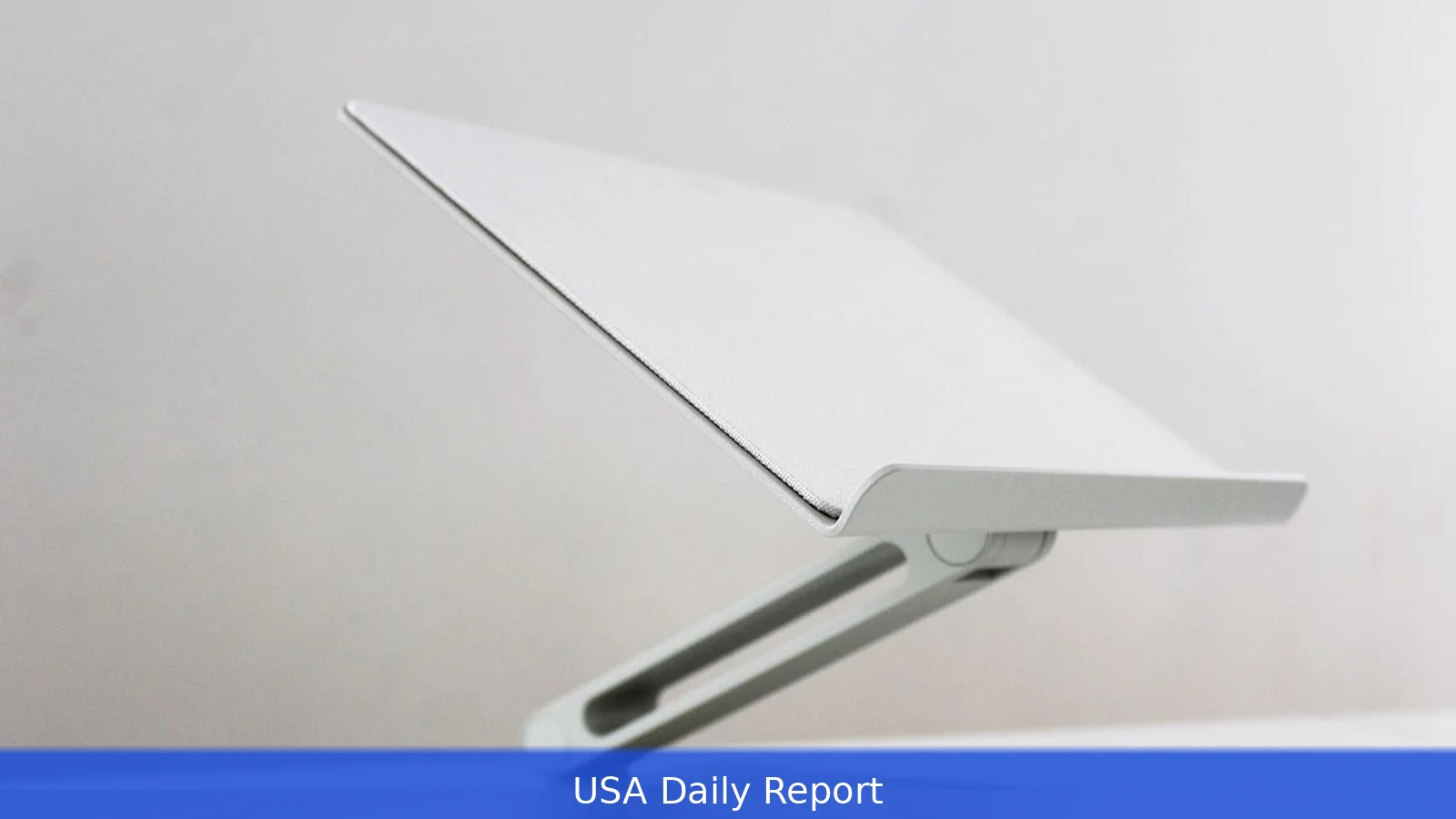
9. Twelve South BookArc for MacBook — Best desktop stand — $69.
10. Anker USB‑C to MagSafe 3 Cable (100W rated) — Best spare cable — $29.
Ranked list: 1–10
1. Anker 737 (120W) GaN Charger — Best all-around charger
Key features: 120W total output across two USB‑C ports, GaN technology for a smaller brick, PowerIQ 4.0 intelligent charging, foldable prongs and roughly pocket-sized footprint.
Pros: Charges MacBook Air and most MacBook Pro models at near-full speed via USB‑C, runs cool, and supplies power to two devices at once — for example a 13–14-inch MacBook and a phone. It’s widely sold through U.S. Retailers like Amazon and Best Buy, with a one-year limited warranty and replacement program.
Cons: Machines that routinely draw over 100W under heavy loads (long rendering, large external displays) may see charging taper near the 120W limit if a second device is attached. Also, MagSafe-only users need a MagSafe cable or adapter to keep the proprietary connector.
Who it’s best for: Frequent travelers and remote workers who want one compact charger for both a laptop and a phone or tablet.
Pricing: $139 (USD).
2. Apple 140W USB‑C Power Adapter + MagSafe 3 Cable — Best for full-power charging
Key features: Apple’s 140W USB‑C Power Adapter is rated to deliver the full charge profile Apple expects for high-end 16-inch MacBook Pro models. Paired with an official MagSafe 3 cable, it gives native MagSafe convenience and supports USB‑PD 3.1 over a USB‑C port when needed.
Pros: Guaranteed to support the maximum charge rate on 16-inch MacBook Pros that call for higher wattage; engineered to match Apple’s thermal and power-management specs. Official accessories tend to have the best compatibility with macOS power reporting.
Cons: At $99 for the adapter and $29 for the MagSafe 3 cable, it’s an expensive combo compared with multi-port third-party GaN chargers. It’s larger on the desk than many GaN bricks and not as useful for charging multiple high-draw devices simultaneously.
Who it’s best for: Owners of 16-inch MacBook Pros who need the fastest, manufacturer‑specified charging, or anyone who prefers MagSafe’s quick disconnect safety feature.
Pricing: $99 for the 140W adapter + $29 for the MagSafe 3 cable (USD).
3. CalDigit TS5 Plus Thunderbolt 5 Dock — Best dock for power users
Key features: Thunderbolt 5 connectivity for laptop-host throughput, multiple downstream ports for displays and peripherals, integrated SD card reader and high-speed Ethernet, and host charging up to laptop-class wattage. Designed for the desk worker who runs several monitors, RAID arrays, and pro audio gear.
Pros: Plug one Thunderbolt cable in, and your laptop behaves like a desktop again — monitors, drives, and network all reconnect instantly. Works well with Apple silicon Macs that support Thunderbolt 4/USB4 and the newer TB5 standard, providing higher aggregate bandwidth for external GPUs, multi-4K displays, and fast external storage.
Cons: At $500 it’s a premium purchase. It’s a bulky desk piece and overkill for someone who’s mostly mobile or only plugs in a display and one drive. Some features — like highest display passthrough modes — depend on the MacBook model and macOS version.
Who it’s best for: Professionals and creators who use a MacBook as a desktop replacement and need numerous ports, fast wired networking, and stable power delivery on the desk.
Pricing: $500 (USD).
4. Logitech MX Keys for Mac — Best wireless keyboard for Mac users
Key features: Low-profile scissor switches tuned for Mac layouts, dedicated macOS keys, multi-device pairing via Bluetooth or the Logitech USB receiver, backlit keys, and up to 10 days of backlight-on use or up to 5 months without backlight on a single charge.

Pros: Comfortable, quiet, and reliable. Key caps are sculpted for thumbs and the layout mirrors Apple keyboards, so there's a small learning curve. Cross-platform support is solid for people who switch between a MacBook and an iPad or a Windows PC.
Cons: Not mechanical — so it lacks the tactile snap some typists prefer. At $129, it’s more expensive than many basic Bluetooth keyboards but cheaper than premium mechanicals.
Who it’s best for: Writers, editors, and office users who want a stable, Mac-first wireless typing experience on the desk.
Pricing: $129 (USD).
5. Keychron K3 Pro (low-profile mechanical) — Best mechanical option
Key features: Low-profile mechanical switches available in tactile or linear variants, hot-swappable switch options on select SKUs, compact 75% layout with macOS keycaps, wireless Bluetooth and wired USB‑C modes, and RGB backlighting.
Pros: Feels mechanical without the tall key travel of traditional mech boards. Lightweight and portable enough to carry with a MacBook in a backpack. Price-to-performance is strong at $89 for the base model.
Cons: Battery life drops with heavy RGB use. Some users prefer a full-size layout with a numpad — this is a compact board. Build quality varies across batches; check for the latest revision before buying.
Who it’s best for: Typists who want mechanical feedback and plan to travel or work in coffee shops as well as at home.
Pricing: $89 (USD).
6. Logitech MX Master 3 for Mac — Best ergonomic mouse
Key features: Ergonomic sculpted shape for right-hand use, electromagnetic scroll wheel for precise or free-spin scrolling, app-specific customization in macOS, Bluetooth/USB pairing, and about 70 days of use per full charge under light usage.
Pros: Fits the hand and reduces wrist strain over long sessions. Button mapping for macOS apps makes navigation faster in apps like Adobe Photoshop, Final Cut, and VS Code. Quiet clicks and reliable wireless range make it a desk staple.
Cons: It’s not ambidextrous. Heavy for some users who prefer a lighter mouse for travel. Retail price sits around $99 for the Mac-branded colorways.
Who it’s best for: Designers, developers, and anyone who spends hours in front of a MacBook with an external monitor and needs a comfortable, programmable pointing device.
Pricing: $99 (USD).
7. Samsung T7 Shield 1TB SSD — Best portable storage
Key features: Ruggedized external NVMe SSD in a compact enclosure, up to 1,050 MB/s sequential read speeds on USB‑C 3.2 Gen 2, IP65 dust and water resistance, and up to 2-meter drop protection.
Pros: Fast enough for editing 4K video off the drive with a MacBook, compact for travel, and uses the standard USB‑C connector most modern MacBooks share. 1TB capacity at $119 gives a good balance of cost and space for media projects.
Cons: Speeds depend on the host port — older USB‑C ports will bottleneck. As an external SSD, it’s more expensive per gigabyte than desktop HDDs or local NVMe slots, but the portability is the tradeoff.
Who it’s best for: Photographers, videographers, and power users who need fast, portable scratch storage for editing on the go.
Pricing: $119 for 1TB (USD).
8. Harber London Leather Sleeve — Best premium sleeve
Key features: Full-grain leather exterior, soft felt interior, slim profile that slips into a bag, hand-sewn edges, and optional pockets for a charger and slim accessories. Made in Europe and aimed at buyers who prefer premium materials and craftsmanship.
Pros: Looks great, develops patina with age, and provides basic drop and scratch protection while staying slim. Fits MacBook Air and many 13–14-inch Pro models; Harber lists compatibility by year and size on product pages.
Cons: At $159, it’s a luxury purchase. Leather requires care and isn’t ideal if you expect heavy weather exposure unless you treat it first.
Who it’s best for: Professionals and executives who want a stylish, long-lasting sleeve that complements a premium laptop.
Pricing: $159 (USD).
9. Twelve South BookArc for MacBook — Best desktop stand
Key features: Aluminum vertical stand that holds a closed MacBook upright to save desk space, rubber feet and inserts to protect the chassis, and it pairs visually with Apple’s aluminum finishes.
Pros: Minimal footprint, good airflow for a closed-clamshell MacBook used with external displays, and simple cable routing. It’s inexpensive and long-lived — $69 retail price.
Cons: Only works when your MacBook is closed or you use an external keyboard/monitor. Not the right option if you want the laptop open for a second display.
Who it’s best for: People who use a MacBook as a desktop computer with a monitor, keyboard, and mouse attached.
Pricing: $69 (USD).
10. Anker USB‑C to MagSafe 3 Cable (100W rated) — Best spare cable
Key features: Third-party MagSafe 3 compatible cable rated to 100W, braided or molded options, and certified for cross-compatibility with recent MacBooks that accept MagSafe 3.
Pros: Cheap spare for travel bags — $29 — and handy if you prefer carrying a dedicated MagSafe cable instead of the full Apple adapter. Works well with high-quality GaN chargers that deliver enough wattage.
Cons: Not an official Apple cable; apple-brand MagSafe offers guaranteed compatibility and reporting. 100W rating is below Apple’s 140W top spec, so top-end models may not hit peak charge speed with this cable.
Here's the thing — who it’s best for: People who want a low-cost spare MagSafe cable for travel and backup without buying another Apple brick.
Pricing: $29 (USD).
How we chose
We looked for accessories that solve real pain points for MacBook owners in 2026: getting power to a machine that demands more watts, expanding ports without carrying a tangle, creating a better typing and mousing experience, and protecting a slim aluminum laptop while on the move. Practicality mattered. So did price and availability across U.S. Retailers.
Each product was scored on five factors: compatibility (25%), performance and specs (25%), build quality and ergonomics (20%), price and value (15%), and long-term support or warranty (15%). We weighted compatibility heavily because Apple’s power and port standards changed in recent MacBook generations — MagSafe 3, USB‑PD 3.1, and Thunderbolt/USB4 variations matter.
We prioritized real-world usability: how fast a charger actually charges under load, whether a dock restores a desktop in a single cable, if a keyboard keeps typing fatigue down over eight-hour sessions, and if storage drives sustain throughput for video workflows. We also considered return rates, warranty length, and retailer presence in the U.S., since replacements or repairs matter.
Final verdict
Start with a reliable high-watt charger and a solid keyboard or mouse if you work long hours. For mobile workers the Anker 737 (120W) covers most bases at $139; for maximum factory-rated speed on 16-inch models, choose Apple’s 140W adapter and MagSafe 3 cable. Add a CalDigit TS5 Plus dock if your MacBook doubles as a desktop hub — plan on spending around $500. For storage and protection, a 1TB Samsung T7 Shield at $119 plus a slim leather sleeve rounds out a practical kit. Finally, buy a spare MagSafe or USB‑C cable for travel; $29 is cheap insurance against a broken cable. These picks balance real utility and price in 2026’s MacBook ecosystem—so your laptop works the way you expect, wherever you are.
Related Articles
- Best AI for Blog Writing 2026
- How to Use Adobe Illustrator for Graphic Design 2026
- Spectrum Mobile Prices 2026 — Cost by Plan
Final verdict — start with the basics: a reliable high-watt charger and a solid keyboard or mouse if you work long hours. Add a dock or SSD depending on whether you’re stationary or mobile. Spend more on the items you’ll touch every day — the keyboard, mouse, and charger — and save on accessories that mainly live in a drawer.
This article was created with AI assistance.


