
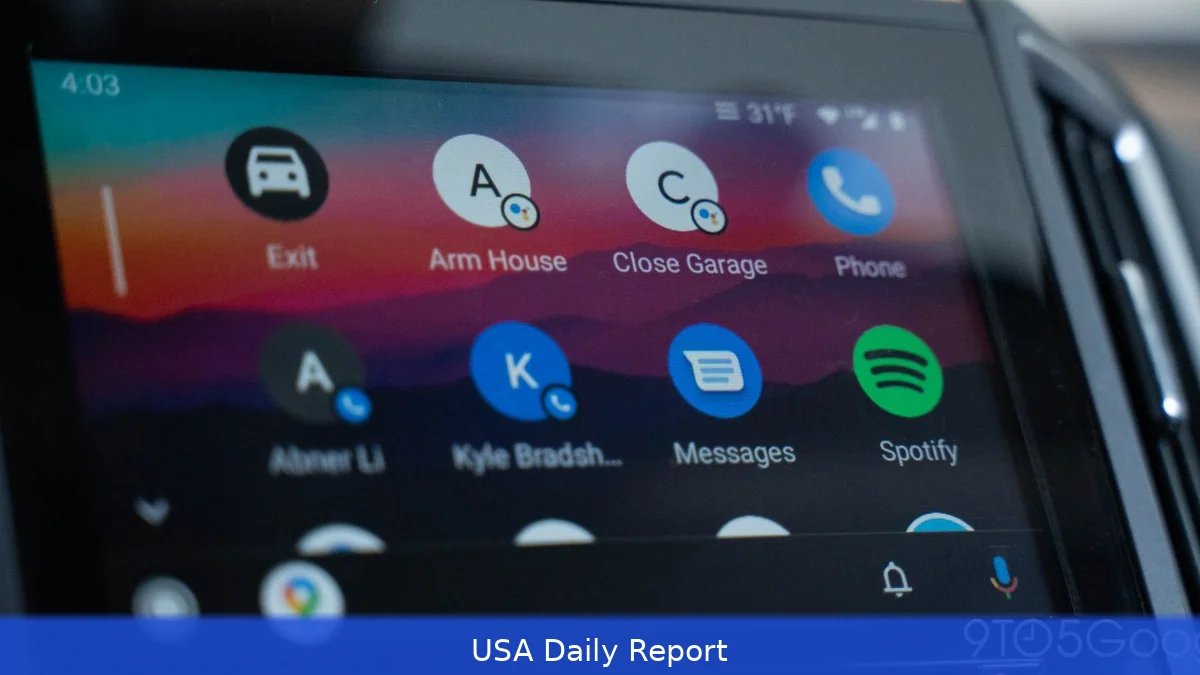
You can trigger whole routines from your car with one tap.
Why this matters
Android Auto gives drivers safer access to navigation, calls, messages and audio, so you can keep your eyes on the road. But there's a little-known shortcut inside the app that lets you run any Google Assistant command you like — and it only takes a minute to set up, Kerry Wan reported for ZDNET.
It can change how you use your phone while driving — less fumbling, fewer voice prompts, more one-tap actions. Instead of fiddling with apps or voice prompts, you get a single icon that launches a preset action.
The shortcut plugs into routines and smart-home controls. Leave work and, with one tap from your car's screen, set the thermostat, shut off the lights and start the robot vacuum.
Because the shortcut lives in your Google account rather than the car, the same button follows you from vehicle to vehicle. But it does depend on a cell signal, so if you're in a dead zone the command might not run.
What the Custom Assistant shortcut does
The shortcut, called Custom Assistant in Android Auto's settings, acts like a mini macro for Assistant. Want to navigate to the nearest gas station? Create a command. Want to tell your partner you're on your way? Create a command. Want the latest episode of your favorite podcast to start playing? Create a command.
Type or say the command you want Assistant to run; Android Auto then puts it on your car's launcher as an icon. Tap it and the phone sends the instruction through Google Assistant the same way it would if you said the phrase out loud.
Instead of several taps or a long spoken sentence, one shortcut does the job. Combine a navigation start with a smart-home change. Or pair a status message to a contact with turning on your windshield defroster app, if you have one that supports voice.
How to set it up
Setting it up is quick — open Android Auto settings, add the Assistant shortcut and you're done. On your Android phone, open Android Auto's settings and choose Customize launcher. Then pick Add a shortcut and select the Assistant action. Type a custom phrase for whatever you want Assistant to do, save it, and connect to your car.
When you plug in or connect to an Android Auto head unit, the new shortcut appears as an icon on the launcher screen. Tap it to run the routine. If the phrasing doesn't work the first time, you can tweak the command text in the same settings menu — it's forgiving but sometimes you need to reword things so Assistant understands consistently.
Gemini makes shortcuts smarter
Google's Gemini integration with Android Auto adds another layer to the shortcuts feature, Kerry Wan noted. Gemini handles more complex language, so you can write natural-sounding commands instead of brittle short phrases.

That helps when you want one shortcut to do multiple things that normally need several separate Assistant calls. Instead of stacking short phrases, you can write a single more natural sentence and let Gemini break it down and execute each step.
That capability expands the practical use cases in the car. A single tap could kick off a multi-step routine: launch navigation, start a podcast, send a short message, and prime a home thermostat — all without pulling out your phone.
Real-world examples
It's easiest to see the benefit in everyday tasks. Create a shortcut that says "I'm coming home," and have it do three things at once: start navigation to your address, send a text to your partner, and set your smart thermostat to a preferred temperature. Another option: "Leaving for work" could put your HVAC into an energy-saving mode, turn off lights, and start your scheduled home cleaning while you're gone.
Other examples include quick navigation prompts — "Navigate to the nearest Shell" or "Navigate to work" — and media shortcuts like "Play the latest episode of The Daily." You can also make shortcuts for messaging: "Tell Mike I'm on my way" becomes a single-tap update to a contact.
Those are the kinds of small conveniences that add up when you commute every day. Instead of saying several voice commands or tapping multiple tiles, you press one icon and move on with driving.
Limitations and practical notes
There are a few limits to be aware of. Because the shortcut uses Assistant, it needs a working data connection. That means it may fail in tunnels, rural areas with poor reception, or any spot with no cell coverage.
Also, the shortcut is tied to your Google account. That makes it portable — the same shortcuts show up in any car where you sign into Android Auto — but it also ties the automation to the account, not the vehicle. If you share a car but not an account, you won't see each other's shortcuts on the launcher.
And while the setup is quick, getting the phrasing right can take a few tries. If Assistant doesn't respond the way you expect, revisit the command text in Android Auto settings and try a more explicit instruction.
Why many users miss it
Part of the reason the Custom Assistant shortcut remains underused is that it's tucked away in menus. You have to go into Android Auto settings, choose Customize launcher, and add the Assistant action manually — something casual users often skip.
Kerry Wan at ZDNET called the shortcut "underused." That's a fair point: many drivers barely scratch the surface of Android Auto's capabilities, using only music and navigation.
But once you add the shortcut, it behaves like any other app icon on the car's screen. No extra setup in the vehicle. No complicated pairing. It's a small change with oversized convenience.
Getting the most from shortcuts
Start with one or two shortcuts that solve real annoyances in your commute. Create one or two commands that solve recurring friction points in your commute — a one-tap "heading home" routine, or a media shortcut to resume a podcast. Test them in real driving conditions so you can adjust phrasing when Assistant misinterprets your intent.
Then expand. Combine navigation with home automation, or link a message to a calendar-related run. If you have smart-home scenes or third-party apps that accept Assistant voice input, you can fold those into car-friendly routines without touching your phone.
Right now, the biggest friction is discovery. Make it into a habit to open Android Auto settings once and scan the Customize launcher options. You'll likely find a quick win that fits your daily routine.
Related Articles
- Apple ships 9 products in March; M5 drives Mac refresh
- FIDO forms two groups to secure payments made by AI agents
- Nasdaq Slips into Correction; Nasdaq 100 Down 11%
The Custom Assistant shortcut is tied to your Google account and needs a cell signal to work, so it appears across Android Auto-equipped cars but may fail where there's no coverage.
This article was created with AI assistance.


