
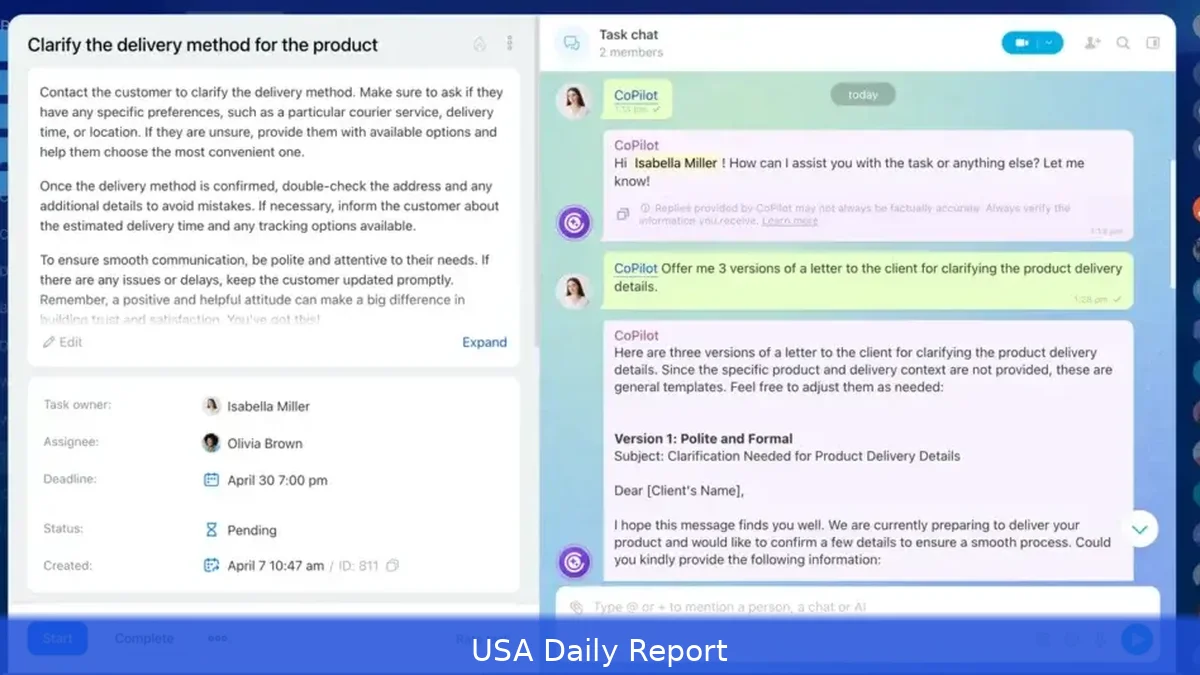
Notion AI can cut busy work and make project work visible fast. I’ll walk you through setup, templates, prompts, automations, security, and costs — with clear steps you can follow in an hour or two so you can actually ship something. Read the quick reference, then run the checklist, and you’ll have an AI-backed workflow that turns meeting notes into tracked tasks.
Quick reference
- Keep your docs, tasks, meeting notes and feedback in one Notion workspace; then use Notion AI to pull quick summaries, turn notes into tasks, and draft status updates for the team.
- Essential pages: Project database, Roadmap (Timeline view), Meeting Notes, Decisions log, Risk register.
- Pricing (2026): Notion Personal: $0; Personal Pro: $5/user/month billed annually; Team: $10/user/month billed annually; Notion AI add-on: $10/user/month; Enterprise: custom pricing and volume discounts. Check https://www.notion.so/pricing.
- Government/security: Check FedRAMP and NIST guidance at https://www.fedramp.gov and https://www.nist.gov before storing sensitive federal data. For federal projects, confirm any vendor’s FedRAMP authorization or an approved cloud path.
Prerequisites
Thing is, before you start, get these ready. These are practical, not theoretical.
- A Notion account and a workspace. Sign up at https://www.notion.so and pick a workspace name tied to your org or team.
- Appropriate plan that includes Notion AI — see pricing above. For teams, budget roughly $10 per user per month for the AI add-on in 2026. Expect billing to be monthly or annual; annual billing usually cuts per-user costs.
- A baseline project structure: a Tasks database, Projects database (or a single linked database), Meeting Notes page, Decisions or Risks database.
- Permission model: assign workspace admins, editors, and viewers. Decide who can run AI on shared pages; plan guest access for contractors. For teams larger than 10, plan for SSO (SAML) and SCIM provisioning if you need centralized user management.
- Stakeholder list and data classification: list data that’s public, internal, or restricted. Mark any PHI or classified items for exclusion before using AI features.
Step-by-step: Set up Notion AI for project management
Follow these steps. Each step is actionable — do one, then the next. Expect to spend 60–120 minutes on initial setup for a single project.
-
Create the workspace and core databases. In your workspace, create these pages: Projects, Tasks, Meeting Notes, Decisions, and Risks. Use database blocks for Projects and Tasks so you can filter, sort, and relate items. For Tasks, add these properties: Status (Select: Backlog, Ready, In Progress, Blocked, Done), Priority (Select: Low, Medium, High), Due Date (Date), Assignee (Person), Effort (Number — hours), Project (Relation to Projects), Completed (Checkbox), and Source (Text — e.g., Meeting, Email, Slack). Save a default template item for quick task creation.
-
Build views that match how teams work. Create Task views: Kanban board by Status (grouped columns), Calendar view by Due Date, and a List filtered to show the current sprint or milestone. For Projects, add a Timeline view to map multi-week work and a Table view for executive summaries (Owner, Health, % Complete, Next Milestone). For Meeting Notes, make a template that includes Agenda, Attendees, Notes, Decisions, and Action Items linked to Tasks.
-
Enable Notion AI for the workspace. From Settings & Members → Members → Billing, add the Notion AI add-on for users who need it. For Enterprise, contact sales for AI scopes and SSO settings. Decide whether to enable AI for all editors or a limited group — for early pilots, start with 3–5 power users.

-
Create templates that use AI-friendly structure. For meeting notes, create a template that includes a short context paragraph (50–100 words), clear agenda bullets, and a placeholder for decisions. Notion AI works best with context lines. For status updates, make a Template Button that runs a prefilled summary prompt — see AI prompts section below.
-
Use Notion AI to extract tasks and summarize notes. After a meeting, paste raw notes into the Meeting Notes template. Run Notion AI to “Summarize” and then “Turn into action items.” Review generated tasks, set assignees and due dates, and use the Relation property to link items to the Tasks database. Do this for one meeting first, then expand.
-
Set up automations for repeat work. Use the Notion API and tools like Zapier or Make (Integromat) to automate routine flows: new Slack message → create task draft in Notion; completed task → update project status; GitHub PR merged → create release note draft in Notion. A simple Zap: Trigger — New Message Posted to Channel in Slack; Action — Create Database Item in Notion’s Tasks database. Test on a sandbox project first.
-
Measure and iterate. Start with a baseline: track average meeting length, time spent on status updates, and number of tasks created per week. After three weeks of AI use, compare changes. For example — if average status-update writing time drops from 45 minutes to 20 minutes for a weekly update, that’s a measurable saving you can multiply by headcount and hourly rate.
AI prompts and templates
Short, example-backed prompts tend to work better. Try a couple of these prompts and tweak them until they give the output you actually want.
- Meeting summary: "Summarize the notes below in 3 bullets: decisions, blockers, and action items with owners and due dates." Paste meeting notes below the prompt.
- Task extraction: "From the text below, extract action items as tasks with a short title (6–8 words), assignee if named, and suggested due date in ISO format, then format for Notion import."
- Status update: "Write a 3-paragraph weekly status for Project X: progress, next steps, and risks. Keep it under 180 words and list any blockers."
- Risk log synthesis: "Identify top 5 risks from the following project notes and rate each as Low/Medium/High with a one-sentence mitigation."
Save these prompts in a Notion page titled "AI Prompts" so teammates can copy-paste. For best results, include 1–2 lines of context before the prompt (project name, sprint number).
Automations and integrations
Notion doesn't have every built-in automation, but its API and third-party tools fill the gap.
- Native automations (2026): Notion offers basic in-app automations for reminders and recurring tasks. Use those for simple schedules.
- Zapier and Make: Use them to connect Slack, Gmail, Outlook, GitHub, Jira, and Google Calendar. Expect to pay an extra $10–20 per month for basic Zapier or Make plans depending on volume.
- Notion API: Use the REST API for custom integrations — for example, push CI/CD release notes into a Releases database, or sync completed Jira tickets into Notion Projects. You’ll need a developer for robust integrations.
- Webhooks: For lightweight triggers, set up webhooks from your ticketing or monitoring tools to create tasks on high-severity alerts.
Security, compliance and permissions
Design security from day one.
- Permissions: Use workspace, page, and database-level permissions. Lock pages that must not change. Use guests for external contractors and limit pages they can view or edit.
- SSO & provisioning: For companies, enable SAML SSO and SCIM for automatic user provisioning. This is standard on Team or Enterprise plans.
- Audit logs and admin controls: Track who created what. Enterprise plans include audit logs and enhanced admin controls — useful for compliance audits.
- Data classification: Exclude restricted or regulated data from things you send to AI. Mark datasets as "No-AI" in your internal policy. Check FedRAMP and NIST guidance at https://www.fedramp.gov and https://www.nist.gov for federal project rules.
Tips
- Start small: Pilot with one team and one workflow — e.g., meeting notes → tasks. Expand after two sprint cycles.
- Measure ROI: Track time saved on recurring work. Example: if AI saves 15 minutes per 1-hour meeting, and you have 8 such meetings weekly, that's 2 hours saved per week. Multiply by hourly rate to show savings.
- Train the team: Run a 45-minute workshop on prompts and templates. Share a one-page cheat sheet with example prompts.
- Use relations and rollups: Link Tasks to Projects and use rollups to show % complete, open blockers, and next milestone for dashboards.
- Version control: Duplicate pages before major automated edits. Use a "Staging" project workspace for experiments.
Common mistakes to avoid
- Over-automation: Automating everything at once creates noise. Automate high-value, low-risk flows first.
- Loose permissions: Giving AI and write access to everyone can expose sensitive data. Limit AI use on restricted pages.
- Trusting AI blindly: Always review AI-generated tasks and summaries. Treat AI as a drafting assistant, not a final approver.
- Not measuring impact: Without metrics, you won’t know if AI helped. Capture time spent on key activities before and after rollout.
- Database sprawl: Too many similar databases slow search. Use relations and templates to keep a single Tasks database tidy.
Related Articles
Start small. Build one AI-powered workflow — meeting notes → action items → Tasks database — then scale. Track monthly time savings, enforce a lightweight permission model, and iterate prompts. If federal or sensitive data is involved, verify compliance paths before storing or sending data to AI.
This article was created with AI assistance.


