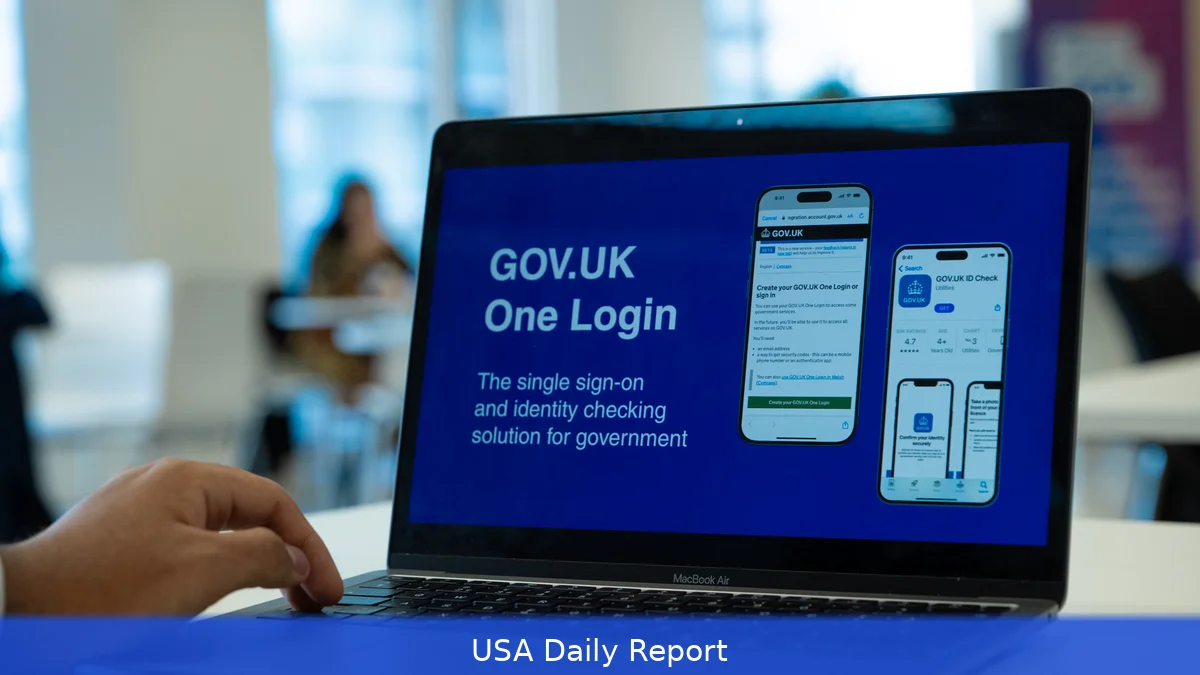
Federal agencies are moving toward a single sign-on experience. GOV.US One Login — commonly seen as Login.gov — aims to give Americans one account to access many government services. This guide explains what Login.gov is, compares it to private providers like ID.me, and walks you through how to create, secure, and recover a federal single sign-on account to keep your access quick and secure in 2026.
Quick-reference summary
Short on time? Here’s the fast version.
- Service name: Login.gov — the U.S. Government’s one-account provider. Website: https://login.gov
- Alternative: ID.me — a private identity provider used by some agencies. Website: https://www.id.me
- Cost: Free for individuals to create and use accounts; no recurring user fees for citizens. Agencies pay contract costs to providers.
- Security: Password plus mandatory second factor for most services. 2FA options include SMS, voice, authenticator apps (TOTP), and hardware security keys (WebAuthn/FIDO2). Backup codes available.
- Identity assurance levels: Login.gov supports IAL1 (basic email-based) and IAL2 (document and selfie proofing following NIST SP 800-63 guidance). Agencies set required level.
- Common uses: Accessing participating federal services — for example, Department of Veterans Affairs benefit portals, some IRS e-services, and other agency apps that opt in.
- When to choose ID.me: If an agency explicitly requires ID.me, or if you lack a U.S. Social Security number (SSN) and need alternate proofing paths. Follow the agency’s sign-in guidance.
Overview: What GOV.US One Login (Login.gov) is — and isn’t
Login.gov is the federal government’s single sign-in service that lets people use one identity to access multiple services. A federal team under the General Services Administration (GSA) runs Login.gov, following federal identity rules. That means the account and its identity proofing are managed by government standards and tied to federal policies like NIST SP 800-63.
However, Login.gov isn’t yet a mandatory digital ID for all federal, state, or local services. Agencies decide whether to accept Login.gov or a private vendor such as ID.me. When you visit a government site, you might find Login.gov, ID.me, or both as sign-in choices. Certain federal programs need a higher identity assurance level (IAL2) and will ask you to verify your identity with documents. Others accept the lower-assurance IAL1 login for basic access.
Top picks / analysis
Here’s a clear comparison of the two main sign-in routes you’ll likely see in 2026.
| Provider | Who runs it | Cost for users | Typical identity checks | Best when |
|---|---|---|---|---|
| Login.gov | U.S. Government (GSA-managed service) | Free to individuals; agencies cover operating costs | Account creation with email verification, password, 2FA. For IAL2: document upload (driver’s license or passport), SSN check, and selfie verification under NIST SP 800-63-3 guidance. | You have a U.S. SSN and state-issued photo ID; you want a government-run account and to avoid third-party identity brokers. |
| ID.me | Private company under federal and state contracts | Free for most individual use cases; some enterprise or premium services for businesses | Document upload, selfie verification, database checks, and multi-factor authentication. Offers alternative proofing for some non-SSN cases. | An agency specifically requires ID.me, or you need alternate proofing paths (no SSN, certain overseas ID issues). |
Step-by-step: How to create and use a Login.gov account
Here’s how to set up a Login.gov account, boost your identity assurance, and link to agency services.
- Start at the official site. Go to https://login.gov. Never follow login links from email unless you’ve checked the URL carefully. Bookmark the site.
- Create an account. Click “Create an account.” Enter a current email address and set a password. Login.gov suggests using a strong password with at least 12 characters including letters, numbers, and symbols, and it blocks common weak passwords.
- Verify your email. You’ll get a verification link. Click it within the time window (usually 30 minutes to an hour). If it expires, request a new code.
- Set up two-factor authentication (2FA). Login.gov requires 2FA for most services. Options typically include SMS or voice to a phone number, TOTP authenticator apps such as Google Authenticator or Authy, and hardware security keys that support WebAuthn/FIDO2 (like YubiKey). Choose a method and record backup codes — write them down and store them in a safe place.
- Decide on identity proofing (IAL level). For basic access (IAL1) you’re done. For higher-assurance services (IAL2) — for example, if an agency asks for proof to manage benefits or submit sensitive forms — choose “Verify your identity” in your account dashboard. That starts a process that asks for a government photo ID (driver’s license or passport), your SSN, and a selfie. The process follows NIST SP 800-63 rules for IAL2.
- Complete document uploads. Use a modern browser and good lighting to photograph your ID and take the selfie. Login.gov supports JPEG/PNG uploads and may offer camera capture on mobile devices. Follow the on-screen tips: unobstructed photo, no glare, and matching name details.
- Wait for verification. Automated checks usually finish in minutes, but some cases need manual review, which might take a few days depending on demand. Agencies will set the required assurance level for access.
- Sign in to agency services. When a participating federal site shows Login.gov as an option, choose it and sign in with the same Login.gov credentials. You’ll be prompted for 2FA when needed. If an agency requires IAL2 and you completed verification, access should be granted.
- Link multiple agencies. Your Login.gov account can be used across different sites — you don’t create separate Login.gov accounts per agency. Each agency integrates through standards like OpenID Connect or SAML to accept Login.gov tokens.
- Maintain recovery options. Keep email, phone number, and backup codes current. If you change your email or phone, update them immediately in the Login.gov account settings to avoid lockout.
Tips for safer, smoother use
- Use a hardware security key (FIDO2) if you can. It’s stronger than SMS and TOTP. Devices like YubiKey cost between $25 and $70 retail but work across many sites and add strong phishing resistance.
- Keep a printed copy of backup codes in a locked spot. Don’t store them in plain text on your phone or email.
- For IAL2 verification, have your photo ID and SSN ready. A clear PDF or high-resolution photo speeds the automated check.
- Enable at least two 2FA methods — e.g., an authenticator app plus a hardware key or backup phone. That gives options if one method fails.
- Read agency sign-in pages carefully. Some benefits sites will tell you which provider they prefer — follow that instruction to prevent repeated identity proofs.
- If you’re traveling or living overseas, register a U.S. Phone number where possible. Some proofing steps rely on U.S.-based verification channels.
Common mistakes to avoid
- Don’t reuse weak passwords. Reused or short passwords are the top cause of account takeovers.
- Don’t skip backup codes or alternate 2FA. People lose access when their phone dies or is replaced without migrating authentication apps.
- Don’t trust unsolicited emails asking you to sign in. Login.gov and federal agencies won’t ask for full credentials through email. When in doubt, go directly to the site you need.
- Don’t upload poor-quality ID photos. Blurry or glared photos are rejected, which delays verification. Use natural light and a steady hand or tripod.
- Don’t assume one account level fits all agencies. Some services require IAL2, so check agency requirements before you start a benefits application.
Related Articles
- Best Antivirus Software US 2026 — Free and Paid Options Tested
- How US Schools Are Using AI in 2026 — Policies, Tools and Concerns
- Best Smart Home Devices US 2026 — Alexa, Google Home and Apple Compared
Want consistent access in 2026? Create a Login.gov account, enable strong 2FA, finish IAL2 proofing if you need benefits access, and keep recovery options up to date. If an agency tells you to use ID.me because of SSN or overseas-ID issues, follow that guidance and keep both accounts ready.


